Docking Windows
Tool windows can be docked, undocked, floated, auto-hidden, or moved to the MDI area.
They can be dragged to new locations and attached to each other to form tab groups.
Complex hierarchies can be created and each control in the hierarchy has the ability to be resized via a splitter.
Document windows differ from tool windows in that they are restricted to the MDI area,
have some additional features for displaying filenames and read-only states,
and are intended to have a shorter lifespan, only while open in the UI.
Both types of docking windows serve a distinct purpose.
As a developer, you have complete control over the capabilities of windows, both at the global and instance levels.
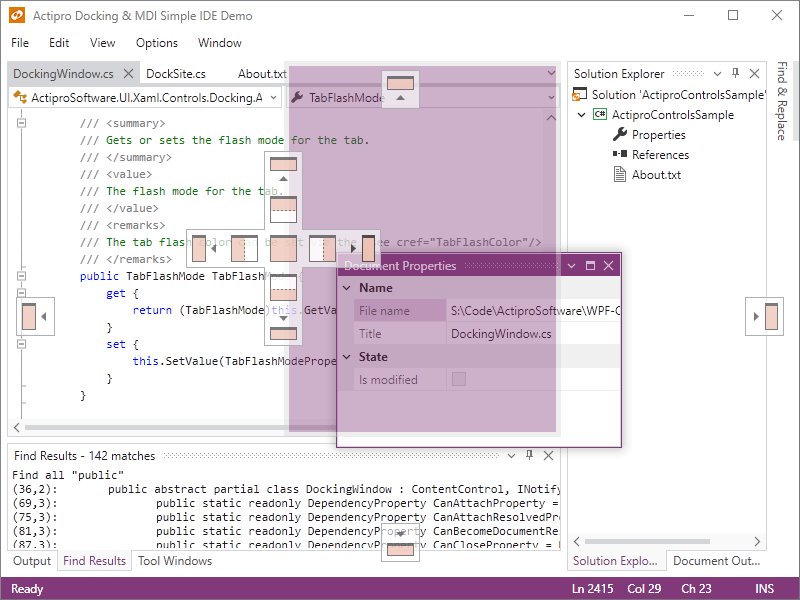
Dock guides that are displayed during docking operations
Rafting Windows
Tool windows can be rafted so that they appear in their own container above the host window.
Dock guides are used to aid in docking into existing dock targets.
Rafting occurs when a tool window is dragged but not released over a dock guide.
Multiple tool windows can be placed in any hierarchy within the rafting container.
Auto-Hidden Tab Groups
A tab group of tool windows that is docked in the main dock site can be unpinned to enter an auto-hide state.
When in this state, tabs for each tool window appears on the outer edges of the dock site.
As the mouse moves over a tab, smooth animation is used to bring the related tool window content into view.
When the mouse and focus leave the tool window, it uses animation to slide back into place with only the tab visible again.
Tabbed MDI
Tabbed MDI is found in modern applications such as Visual Studio and makes the best use of the MDI area's available real estate.
With tabbed MDI, there are one or more tab groups with each tab representing a docking window.
Similar to tool windows, windows in tabbed MDI may be dragged to create complex hierarchies of tab groups, each of which can be resized.
Menu items are available to quickly create new tab groups or move windows to other tab groups.
Standard MDI using windows to represent documents
Standard MDI
Standard MDI is the original windowed variety of MDI that has been in Windows since the beginning.
In this MDI mode, each docking window is represented by a Window-like control that can be moved, resized, minimized, or maximized
within the containing workspace area.
Cascade and tile operations can be accessed via a single method call.
You also can switch between MDI modes at run-time.
Tool Window Inner-Fill
When there is no workspace area within a dock site, the tool window hierarchy fills the entire dock site client area.
This is called tool window inner-fill.
This mode is useful for applications that don't have a need for MDI or a workspace area and want their application
to be made completely of tool windows.
A root dock site with a document window that has a nested dock site within it
Nested and Side-by-Side Dock Sites
Each dock site and its docking windows are totally self-contained.
You can place multiple dock sites next to each other and the tool windows from one will not be able to dock into the other.
You can even nest dock sites, where a document window in the root dock site has its own inner dock site
that contains tool windows.
Animated Transitions and Effects
Various animated transtions and effects are used throughout the product.
When clicking between tool window tabs, you can assign any animated transition that is found in our Shared Library.
We built a special transition that scrolls content left, when selecting a tab to the right, and vice versa.
It makes for a really great visual effect.
When causing auto-hide tool windows to fly out or back in, animations are used to scale, stretch, and/or fade the content.
Hosted rafting windows have subtle animations used for fading out after inactivity.
Switchers
Switchers appear when pressing keys like Ctrl+Tab and allow you to quickly navigate to an open docking window
via the keyboard. Previews of the docking window contents are available as you make your selection.
Layout Serialization
With any application, it is important to be able to serialize end user customizations.
The entire tool window layout can be serialized to XML and saved in a storage medium of your choice (file, database, etc.).
Later it can be restored when your application starts, enabling the end user to have their UI customizations restored.
A sample of using docking windows with Actipro Ribbon
Theming
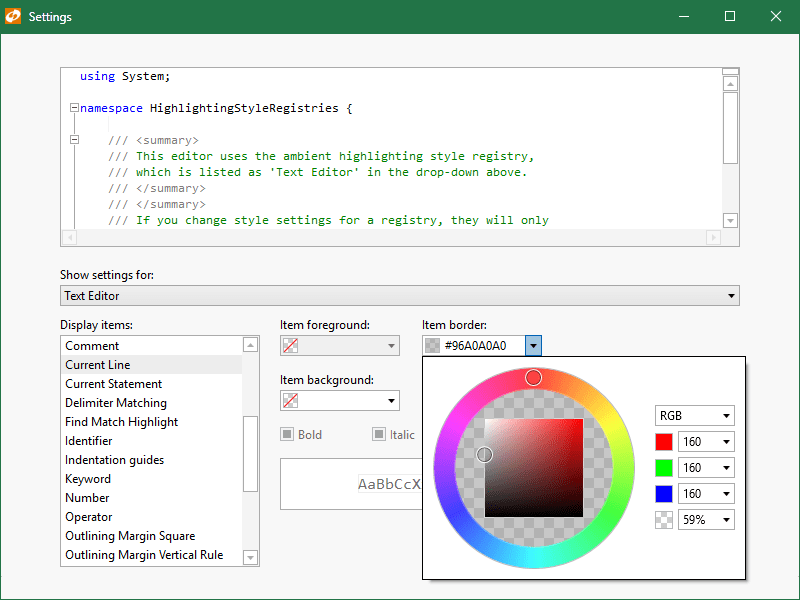
Built-in themes are included for the three Office themes and all Windows system themes.
While this encompasses a lot of built-in themes,
you can also generate a completely custom tinted theme with a single line of code.
For advanced developers who want even more customization possibilities, we've made all our controls so that they can be styled and templated
and all primitive elements that are used in our built-in control templates are public.
Right-to-left and Localization
All docking UI supports right-to-left layouts and all text in the user interface may be localized to other languages.
XBAP Support
Docking & MDI fully supports use in XBAPs (browser applications).
We have specifically engineered it to operate within the bounds of the XBAP security sandbox.
Extensive Documentation and Samples
Actipro has spent a lot of time refining the design of Docking & MDI to take advantage of WPF best practices.
We realize that a good product is only part of the equation though and have also worked very hard to
write detailed documentation on the product.
In addition to that, Docking & MDI ships with the full source for many QuickStart examples that each focus on
learning a specific feature.
Try a live online demo