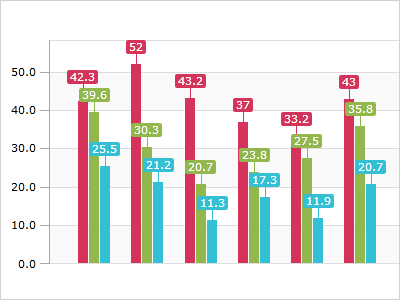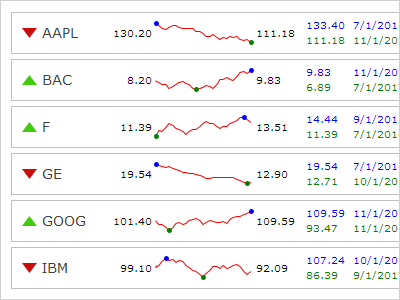
Micro Charts has an enormous number of data-related and appearance features.
Each series in a chart control can be bound to a separate data source, or to different properties on the same data source. The ItemsSource property on each series can be set to any collection of objects, including custom objects, as long as the collection implements IEnumerable. There are two types of collections that can be used: simple (such as as list of Double) and complex (such as a list of custom objects).
For simple collections, the actual value in the collection is used as the primary value (which is typically the Y value) and the index in the collection is used as the secondary value (which is typically the X value). For complex collections, the primary value can be obtained from any property on the custom object by indicating the target property name. The secondary value defaults to the index in the collection, but a property name can also be specified so that it comes from a property on the custom object.
In order to increase rendering performance, the chart control automatically determines the optimal number of data points to display based on the size of the control. Options are included for whether aggregation is enabled, the degree of aggregation to apply, and the method by which to aggregate groups of data (average, first, min, etc.).

One of the best features of Micro Charts is the enormous number of properties that allow complete control over the styles applied to the various elements used to render each series in a chart. Want to change how negative areas or high point markers appear? No problem!
Over 10 pre-defined color palettes are included with Micro Charts. These palettes provide the colors to use in a chart's series and are especially useful when multiple series are in a chart. There are a couple options for how each series will select a color from the palette, and in cases where there are more series than palette colors defined, additional related color shades can be automatically generated for the series. Palettes with custom colors are easily defined as well.

The customizable baseline value determines what the chart considers "positive" and "negative" values. Any value greater than or equal to the baseline value is considered positive, and any value less than the baseline value is considered negative. Alternate styles can then be applied to negative values to make them visually apparent.
The baseline can optionally be displayed, and its appearance fully customized.
Hot tracking displays a customizable tooltip which contains the values of the data point closest to the end-user's mouse cursor. The series data rendered in the tooltip is easily formatted via a format string, or the entire appearance can be modified with a custom data template.
Markers are small bullets that mark the location of data points in a chart. Options are included for showing all or just certain kinds of markers (first, last, high, low, negative, etc.). Markers can also optionally be displayed using different styles based on their kind. Multiple built-in marker kinds are included.
Specific value ranges of the chart can be highlighted to convey additional information to the end-user. The ranges can be customized to take on any appearance and can render both horizontally or vertically.