Actipro Blog 2015 Q2 Posting Summary

by Avatar Bill Henning (Actipro)
Thursday, July 2, 2015 at 8:35pm

BlogSummaryBlogPostBanner

What We Accomplished

In this quarter, we published the 2015.1 versions of our WPF, Silverlight, and WinRT/XAML controls, along with maintenance releases of our WinForms controls.  These versions included several new controls and some big feature enhancements for our existing controls.  Check out the release posts for more detail.

What’s Coming Next

In recent weeks, we've been primary focused on the development of our Docking/MDI vNext product.  We are completely reworking the internals of our popular Docking/MDI for WPF product, adding an enormous number of major new features along the way.  Most of the new features are a direct result of customer requests.  We've started detailing some of the new features in blog posts and watch for many more to posts come.  For instance, updates to tabbed MDI are progressing well and you'll soon have new features at your fingertips like pinning tabs, having preview (right-aligned) tabs as in Visual Studio, etc.

Blog Post List

Control Product Development and Releases

Docking/MDI vNext Development

WPF, Silverlight, WinRT/XAML, and WinForms Maintenance Releases

by Avatar Bill Henning (Actipro)
Friday, June 12, 2015 at 6:17pm

Docking/MDI vNext - Floating MDI

by Avatar Bill Henning (Actipro)
Friday, June 5, 2015 at 7:18pm

PostBannerWPFControlsDevNotes

As mentioned in this previous post, we've been looking for ideas to further improve our WPF Docking/MDI product, which already is the market leader for docking tool window and MDI functionality.  We've committed to working on a complete internal restructuring of the product that we will call Docking/MDI vNext.  We're doing our best to keep the same general API surface, while providing even more advanced features in every area of the product.  We've collected suggestions from our customers over the past several years and are working to meet them as best we can with Docking/MDI vNext.

In our previous post, we discussed some new features coming to standard MDI.  In today's post we'll get into one of the largest new features coming in vNext, which is the ability to have a full-featured MDI with docked tool window support in a floating container.

Feature Description

In the current 2015.1 version, you can float document and tool windows.  Each document window goes into its own floating container, while tool windows can be combined in floating containers.  Many customers have requested that we allow a full MDI in floating containers and that's what we're bringing to vNext.  Let's have a first look at how this will work.

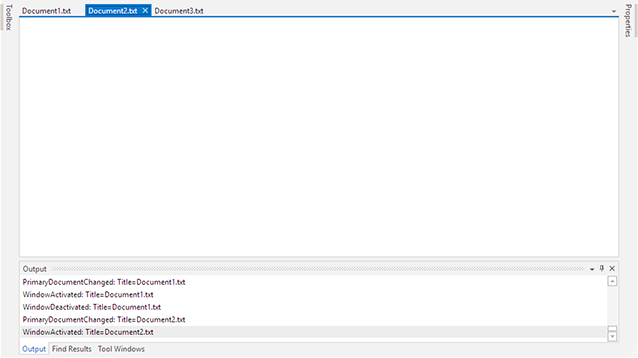
Here we have a main window that contains two tabbed documents (docked next to each other) and tool windows in various locations docked around the MDI area.

FloatingMdi1

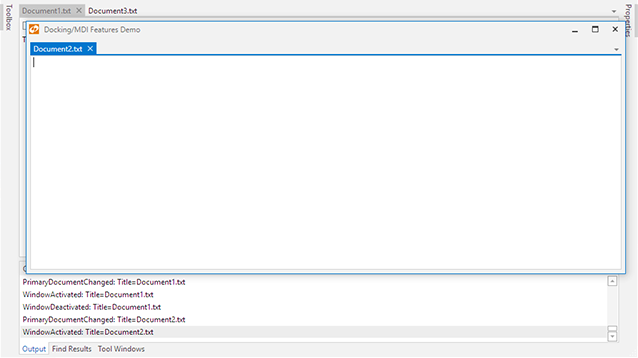
Next I drag the Document1.txt tab into its own floating container.  Then I drag Document2.txt and using dock guides, attach it to the first document.  This is a new feature that couldn't be done before.

FloatingMdi2

Finally I drag the Solution Explorer and dock it next to the MDI in the floating container.  Again, this is a new feature that couldn't be done before.  The end result is a single DockSite that has two fully-functional DockHosts in it, one that is primary (within the DockSite) and one that is in a floating container.

Summary

Floating MDI features have been requested by a number of customers and we're very happy to deliver them in vNext.  This feature set allows your single app to have multiple MDI areas that can be most effectively used in multiple monitor scenarios.  Your end users will love it!

Docking/MDI vNext is currently still in mid-development stages but is progressing very well.  Please contact us via email if you are an existing customer and would like to sign up as a beta tester for vNext.  If you have any other suggestions for improving Docking/MDI, now is the time to get them in.  We'll post more updates on our vNext improvements soon.

In the meantime, please download our current Docking/MDI control product and give it a spin.

TaskDownload TaskLiveDemo TaskBuyNow

Docking/MDI vNext - Standard MDI Dock Target and Context Menus

by Avatar Bill Henning (Actipro)
Friday, May 29, 2015 at 7:37pm

PostBannerWPFControlsDevNotes

As mentioned in this previous post, we've been looking for ideas to further improve our WPF Docking/MDI product, which already is the market leader for docking tool window and MDI functionality.  We've committed to working on a complete internal restructuring of the product that we will call Docking/MDI vNext.  We're doing our best to keep the same general API surface, while providing even more advanced features in every area of the product.  We've collected suggestions from our customers over the past several years and are working to meet them as best we can with Docking/MDI vNext.

In yesterday's post, we talked about a new optional size-to-content feature coming to standard MDI.  In today's post we'll get into some other new features:  standard MDI dock target and context menus.

Feature Description

One new addition is that now standard MDI can accept an "attach" (center dock guide) when dragging tool windows around.  If the tool windows are dropped on the center dock guide, they immediately become documents in the standard MDI.

Another new feature is the ability to right-click on a standard MDI window's title bar or click its icon (if any) to see a context menu.  We'll be expanding the options on the context menu further in the future.

Let's see all of this in action!

StandardMdiDocking

In this animation, we drag the Solution Explorer and Class View tool windows around.  You can see the dock guides displayed for the standard MDI area.  At first, we dock the tool windows to the left of MDI, keeping them still in a Docked state.  Then we "attach" (center) dock them into the standard MDI and they become documents.

You can see the context menu that comes up when the title bar is right-clicked.

Summary

These great new features will be part of Docking/MDI vNext, with plenty more on the way!

Docking/MDI vNext is currently still in mid-development stages but is progressing very well.  Please contact us via email if you are an existing customer and would like to sign up as a beta tester for vNext.  If you have any other suggestions for improving Docking/MDI, now is the time to get them in.  We'll post more updates on our vNext improvements soon.

In the meantime, please download our current Docking/MDI control product and give it a spin.

TaskDownload TaskLiveDemo TaskBuyNow

Docking/MDI vNext - Standard MDI Size-to-Content

by Avatar Bill Henning (Actipro)
Thursday, May 28, 2015 at 8:59pm

PostBannerWPFControlsDevNotes

As mentioned in this previous post, we've been looking for ideas to further improve our WPF Docking/MDI product, which already is the market leader for docking tool window and MDI functionality.  We've committed to working on a complete internal restructuring of the product that we will call Docking/MDI vNext.  We're doing our best to keep the same general API surface, while providing even more advanced features in every area of the product.  We've collected suggestions from our customers over the past several years and are working to meet them as best we can with Docking/MDI vNext.

The past several days, we have been refining standard (windowed) MDI and adding several features.  In today's blog post, I'd like to show a new feature coming to standard MDI, which is the ability to resize to content when first displayed.

Feature Description

There is a new option on the DockingWindow class that can be set to hint that when the docking window opens in standard MDI, it will automatically size-to-content.  In this example, a Document1.txt docking window has a simple TextBox in it and the special size-to-content mode activated (which is off by default):

StandardMdiSizeToContent1

When opened in standard MDI, the window sizes to content and appears in the workspace area.  Now if we manually execute the Cascade method, or if we would have originally kept the size-to-content option off, the docking window will look like this:

StandardMdiSizeToContent2

In this case, it is using a standardized formula for setting the width and height.

Summary

The ability to automatically resize a standard MDI docking window on load will be delivered in vNext.  This is another user-requested feature.

Docking/MDI vNext is currently still in mid-development stages but is progressing very well.  Please contact us via email if you are an existing customer and would like to sign up as a beta tester for vNext.  If you have any other suggestions for improving Docking/MDI, now is the time to get them in.  We'll post more updates on our vNext improvements soon.

In the meantime, please download our current Docking/MDI control product and give it a spin.

TaskDownload TaskLiveDemo TaskBuyNow