This version makes many small feature enhancements and quality of life improvements in the WPF Controls.
See the related announcement post for the detailed list of enhancements and updates.
This version makes many small feature enhancements and quality of life improvements in the WPF Controls.
See the related announcement post for the detailed list of enhancements and updates.
 Bill Henning (Actipro)
-
1 comment
Bill Henning (Actipro)
-
1 comment
This version includes new controls, new WindowChrome features for Windows 11, many improvements for SyntaxEditor and its add-ons, updates to nearly all WPF products, and now includes .NET 5 assemblies in the NuGet packages with validated .NET 6 compatibility.
See the related announcement post for the detailed list of enhancements and updates.
Here's a look at some of the new features.
Added a rich API that can create modern, themed dialogs for anything from simple messages and confirmations, to more advanced scenarios like exception notification dialogs or file copy dialogs.
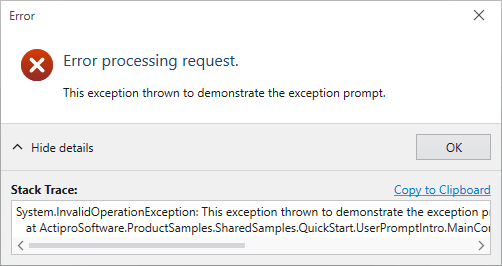
We even include a ThemedMessageBox object with static methods that match the native WPF MessageBox API. Our themed version of the MessageBox uses a chromed WPF Window instead of Win32 dialogs (as the default WPF MessageBox does), along with fluent icons. This is important when your app is in a dark theme because it allows all message/confirmation dialogs to match the theme. You can instantly modernize all message box display in your app to our implementation with a single line of code too.
Added a new control that is often seen as a replacement for a traditional CheckBox in modern user interfaces.
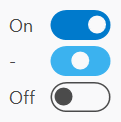
It's easy to customize the appearance of ToggleSwitch to support other styles as well.
Made numerous updates to PopupButton to improve focus handling, tooltip display, key handling, and knowing when to close itself.
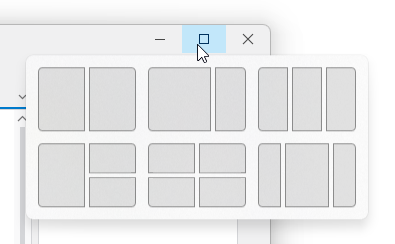
WindowChrome has added support for Windows 11 where it will use rounded corners and system-rendered drop shadows. In addition, hovering over the title bar's Maximize or Restore buttons will show the Windows 11 Snap Layout menu.
A new sample demonstrates synchronizing the scroller and splitter of one editor instance with another.
Improved drag/drop interaction and related scrolling in several scenarios, and add a new Drag and Drop QuickStart sample.
Added a formula example with alternate style for nested parentheses.

Made many small improvements in the areas of editing and caret movement, especially in certain special contexts.
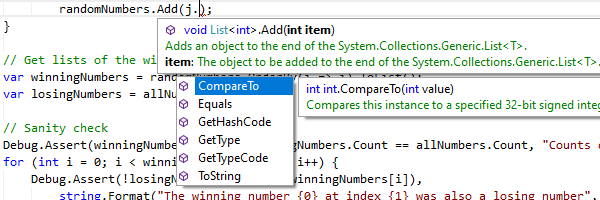
Improved popups to reposition themselves as the editor is scrolled.
The vertical scrollbar has been updated to handle collapsed regions more smoothly.
Updated to support C# 8.0 syntax.
A new sample that demonstrates using an IResolver to navigate to the source of a reference.
The outliner will now create nodes for code-level constructs such as block statements by default.

Updated to support ECMAScript 2021 (12 Edition) syntax.
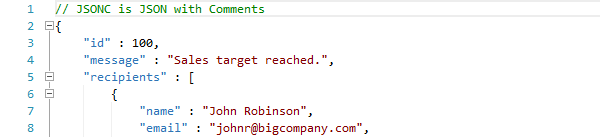
Added a constructor for whether the language should support JavaScript style comments, as in Microsoft’s JSONC variant.
Updated to support Python v3.9.5 syntax.
Updated to support namespace packages.
Added a FilterApplied event that is raised after the current filtering state has been applied to all of the control's items, generally occurring when DataFilter is changed, or filtering is enabled or disabled
Added a new item adapter method that can improve performance in large trees when searching for a tree node, and improved focus tracking and filtering.
Updated edit box commit triggers so that commit on focus loss is now optional.
Updated the numeric edit boxes to support input of Full-width and Arabic-Indic digits.
Added SignedMaximum and SignedMinimum aggregation options that compare against absolute values while retaining the sign of the original value; e.g., -5 is greater than 4.
The WPF Controls NuGet packages on nuget.org now contain compiled product assemblies that target:
Projects that target .NET 5 or later will use the .NET 5-based assemblies, and projects that target .NET Framework 4.5.2 or later will use the .NET Framework 4.5.2-based assemblies.
We’ve also validated that our assemblies work great in .NET 6 applications.
 Bill Henning (Actipro)
Our v21.1 WPF controls have been updated with a new maintenance release that is now ready for download. This version has many updates for SyntaxEditor along with improvements for Ribbon, Docking/MDI, and other products.
See this announcement post for the detailed list of enhancements and updates.
 Bill Henning (Actipro)
We are pleased to announce the release of the 2020.1 version of our WPF Controls, which is the culmination of many months of work to modernize themes across all Actipro and native WPF controls, create a unique and powerful framework to fully customize theming in your apps, and build a Theme Designer application for configuring/previewing theme definitions.
In addition to those features, we’ve added new controls, implemented a new Sample Browser application design, provided .NET Core assemblies and NuGet packages, and created a new product installer.
This announcement post contains a summary list of updates in the 2020.1 version.
Let’s take a look at a handful of the larger updates.
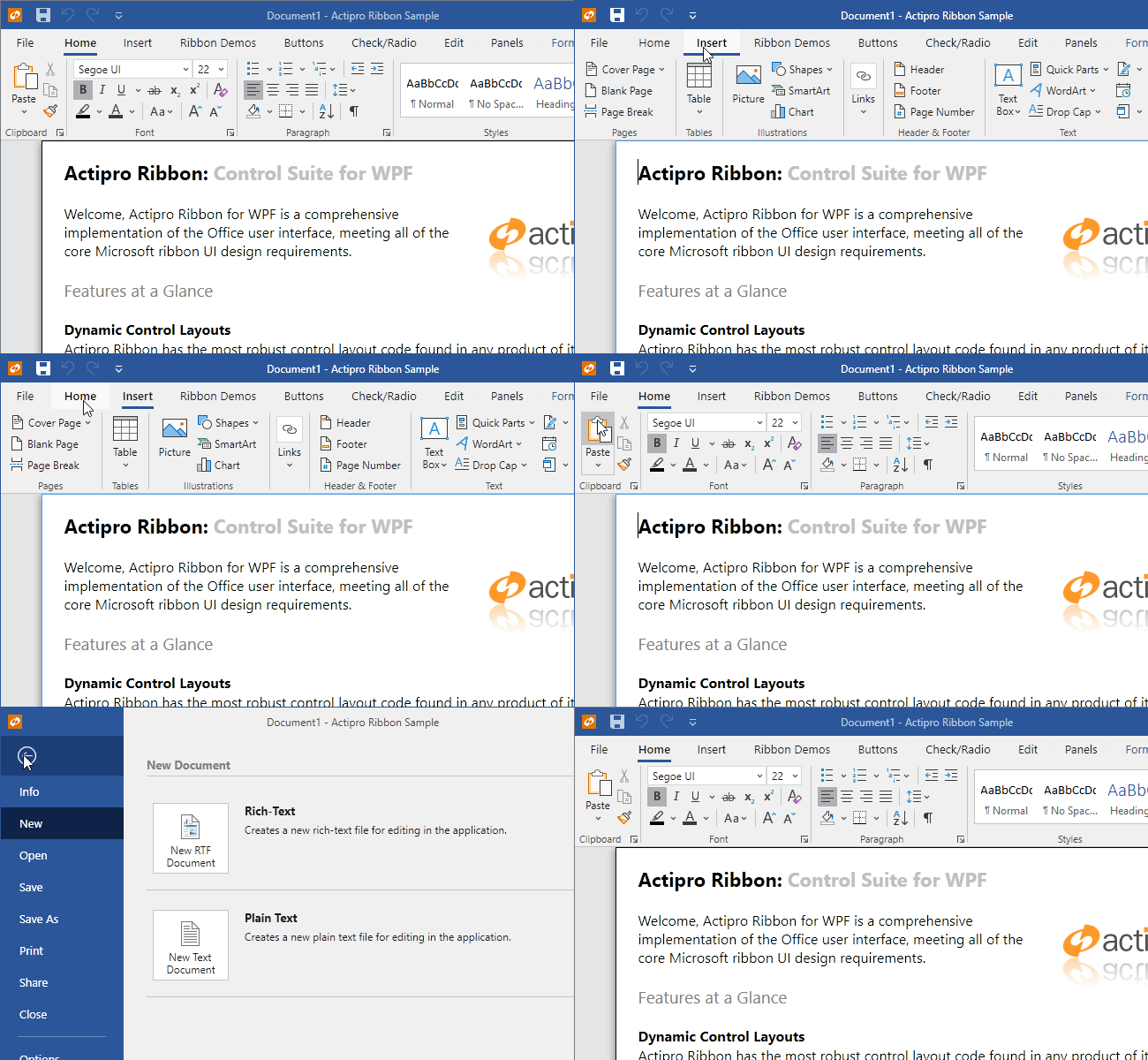
We have gone through every Ribbon-related control and made style improvements to match the latest appearance found in Office 2019.
We also wanted to provide fluid animations throughout the Ribbon, similar to Office. When you move your mouse over a tab, the underline animates to fill the tab. When you select a new tab, the tab’s content animates into place with a quick slide.
The Ribbon Backstage takes advantage of our new WindowChrome overlays mechanism and is now fully animated on display as well.
The Actipro WPF controls provide numerous complete pre-defined themes that render similar to various Windows and Office versions. These themes apply to Actipro and optionally native WPF controls as well so that there is consistency throughout your application’s appearance. While this system has always worked well, the old pre-defined themes were somewhat difficult to customize. We wanted to take themes to the next level for the new version, and we have truly built something fantastic.
v2020.1 has a new framework where you can configure numerous options on a theme definition object. When you register that theme definition with our ThemeManager, you then can apply that theme at any time with a single line of code. Multiple theme definitions can be registered, allowing you to register “light” and “dark” themes (or any other variant you like) and instantly toggle between them at run-time.
There are well over 50 theme definition options so far, including options for color palette, border contrast, bullet appearance, font size, corner radius, window appearance, and much more.
Like one of our pre-defined themes but wish to enable rounded corners on controls instead of square corners? A few lines of code can accomplish this. Want to build out your own custom color scheme for your app? No problem! The theme generator will construct over 1,000 resources like Brushes, Thicknesses, etc. that can be reused anywhere in XAML, and all based on your theme definition’s options.
A very important piece of theming is being able to visualize exactly how altering theme definition options affects the rendering of various controls. That’s where the new Theme Designer application comes into play.
The Theme Designer application provides numerous "entire-theme preset" menu items that initialize a theme definition based on one of our pre-defined themes:
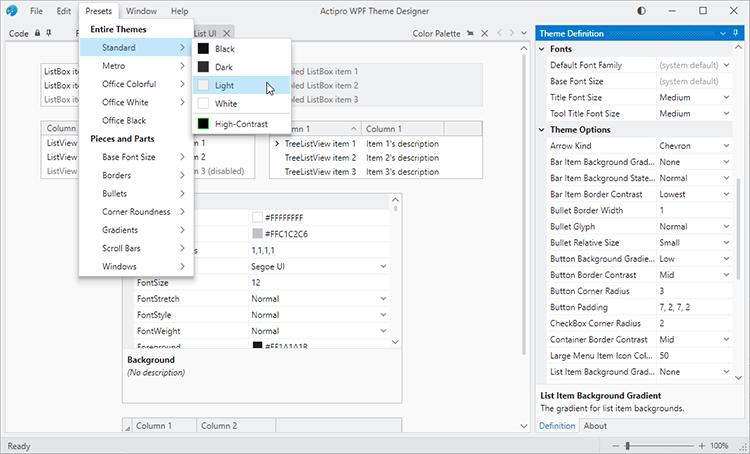
Here you see the app using the selected theme preset with some sample List/Grid UI in the document area. The Code document lists App.OnStartup code that you can paste into your own application to replicate the same theme in your application.
The Theme Definition tool window on the right contains a property grid where you can fully customize the many theme definition options. When a theme definition option is changed, the Code document’s text is updated appropriately to set non-default values, and the app itself immediate applies the theme so you get instant feedback on how theme definition options affect the appearance.
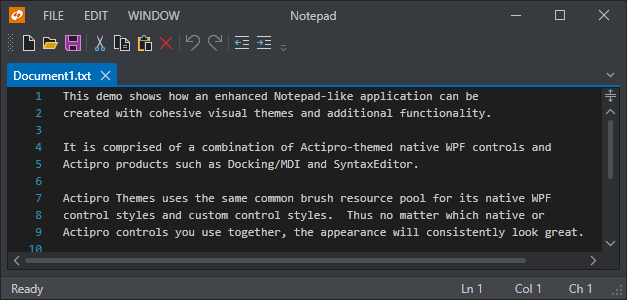
Color palettes can be configured to fit your brand, such as here where we have created a dark theme with heavy blue tint.
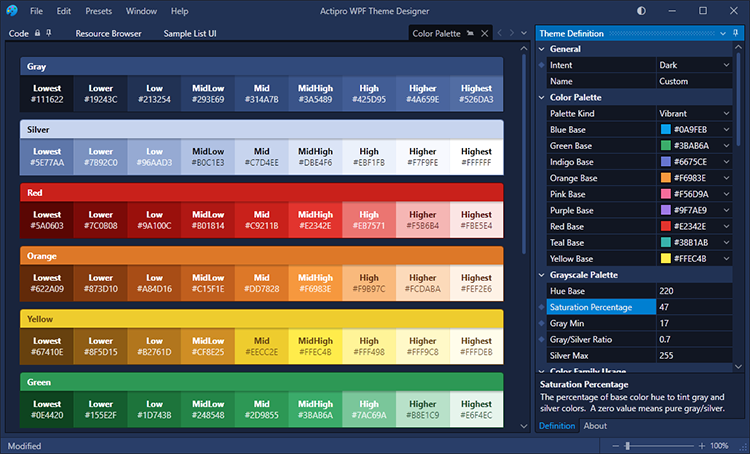
A resource browser tab lets you copy a DynamicResource to any of the resources generated from the theme definition. And many tabs containing sample user interface controls are included, allowing you to fully visualize how the theme will look with real-world controls.
This new Theme Designer application will be a key addition moving forward for our WPF Controls customers.
We’ve refactored all our Actipro and native WPF control styles/templates to take on a more modern appearance. In modern themes, glyphs now use more of a chevron appearance, there are updated scrollbar visuals, and there are soft downward drop-shadows. We’ve added all this, and a lot more. As mentioned above, everything can be configured in theme definitions to look exactly how you want.
We’ve reworked the entire high-contrast theme so that all UI in Actipro and native WPF controls renders well in high-contrast mode, ensuring your app is fully-accessible to all customers.
We’ve built optional features into ThemeManager that can automatically track the Windows light/dark setting for apps, and detect when high contrast mode is activated. When any of those options change, ThemeManager can automatically change your app theme appropriately to a theme you selected for each of those scenarios.
WindowChrome, which is included in the Shared Library, allows any WPF Window to have advanced chrome features. In the past this has mostly related solely to providing a themed window that had a Metro, Office, or Aero-like appearance. Version 2020.1 adds an extensive set of new features that customers are going to love.
A new MVVM-compatible overlay feature allows custom content to be injected that overlays the entire window, including the title bar area. This feature supports several built-in animations and offers up all kinds of exciting possibilities for your apps.
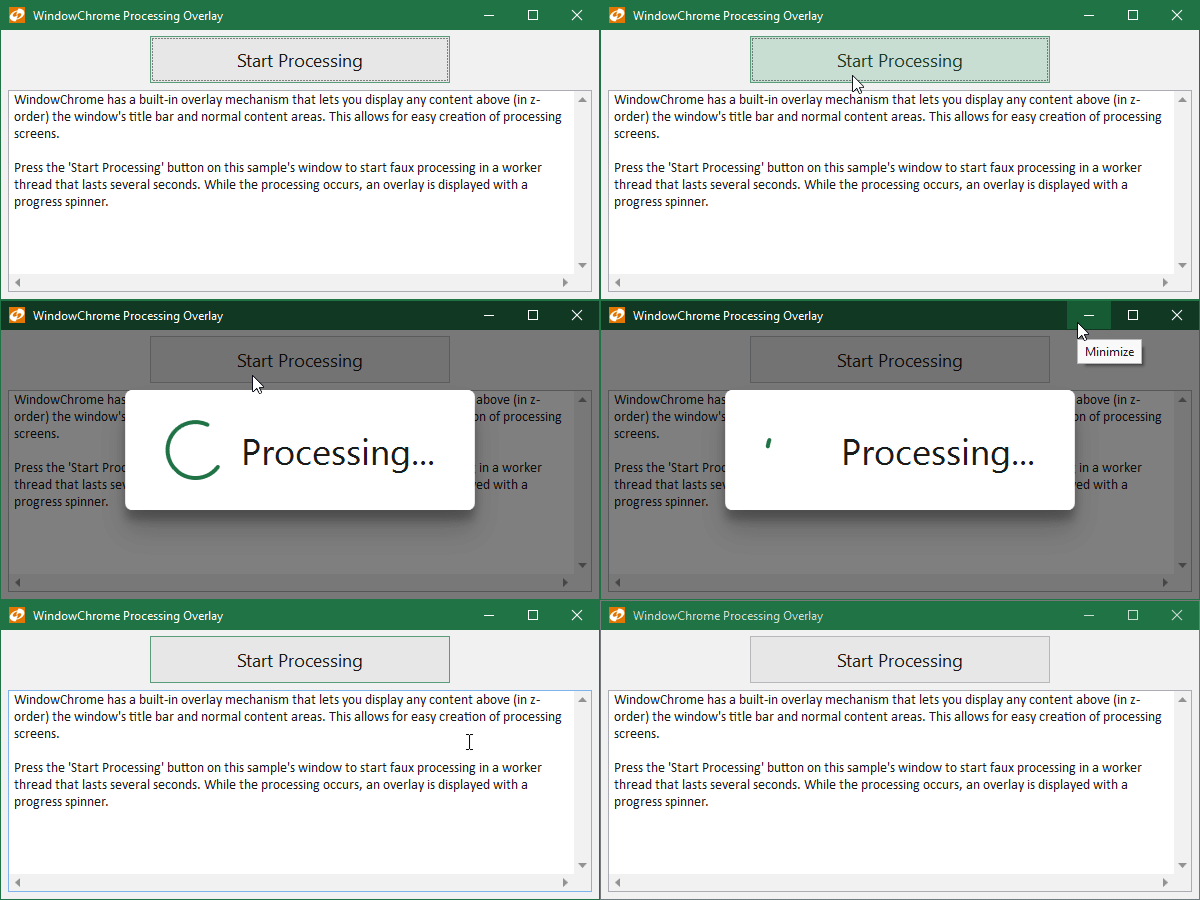
Anything from an Office-like home screen to a processing indicator can be implemented in the overlay.
Title bars can be customized to include any custom content on the left side, center, or right side of the title bar. Each one of those areas is treated like a ContentControl so that they can be configured via child controls directly, or via MVVM models and DataTemplates.
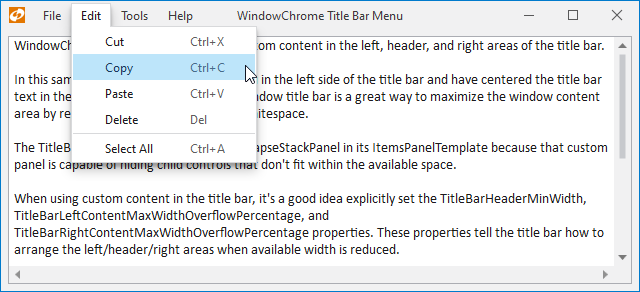
It’s now easy to add a Menu into the title bar, as seen in many modern apps.
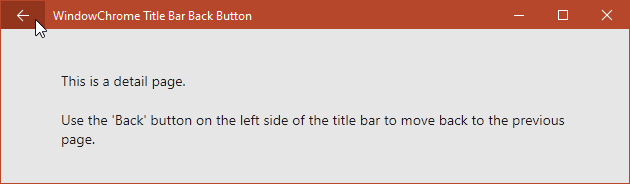
You can replace the title bar icon with a Back button.
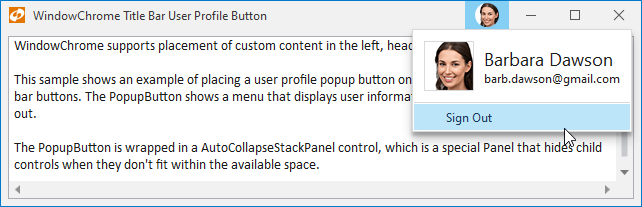
Or add a user profile button on the right side of the title bar.
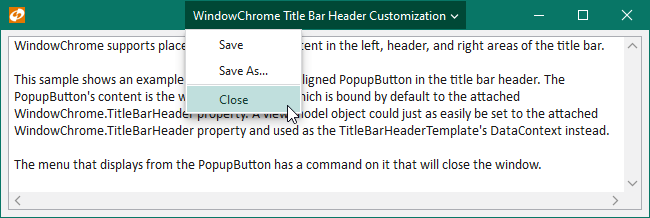
The central header portion of the title bar can even be replaced with custom content, like a popup button.
Some modern apps have a more stylized design for their windows and don’t wish to have a traditional window title bar appearance. This is often achieved by merging portions of the window’s content into the title bar area. New WindowChrome features offer three kinds of merge options.
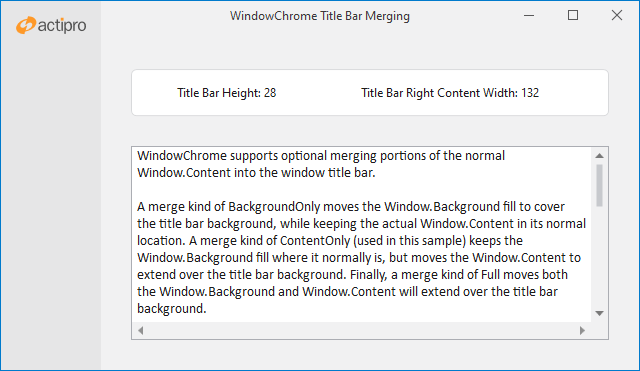
A merge kind of BackgroundOnly moves the Window.Background fill to cover the title bar background, while keeping the actual Window.Content in its normal location. A merge kind of ContentOnly keeps the Window.Background fill where it normally is, but moves the Window.Content to extend over the title bar background. Finally, a merge kind of Full moves both the Window.Background and Window.Content to extend over the title bar background.
WPF Windows have always used Win32 to provide their system menus, which are menus displayed when clicking the window’s title bar icon, or when right-clicking on the window title bar. The Win32 system menu is not rendered by WPF, and therefore never matches the style of a WPF application. This is especially evident when using dark themes in your app.
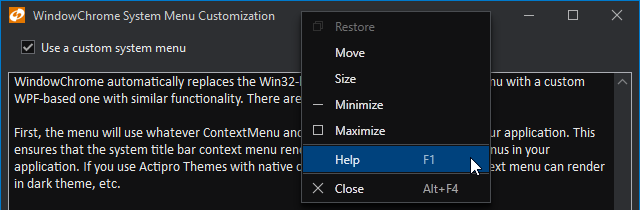
WindowChrome updates automatically replace the Win32-based system title bar context menu with a custom WPF-based one with similar functionality that renders the same as other menus in your app. This means it will look great in dark theme. Further, the menu can be fully customized, allowing additional menu items to be injected prior to display.
Image adaptation is a new feature area that is a real game changer in many applications. Combined with our DynamicImage control, image adaptation consists of a number of ways to manipulate images for display in various scenarios like dark themes, high-DPI, and monochrome.
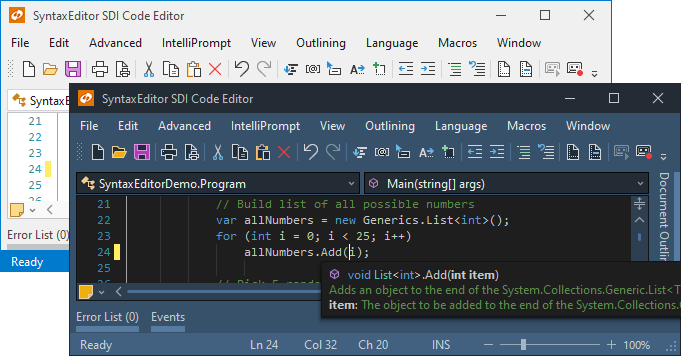
Features include:
Effectively, you can design a single set of icons for a light theme, and reuse those same icons in dark and high-contrast themes with almost no additional effort.
The PropertyModel class, which is intended for manually-created properties that should appear in a PropertyGrid, has been updated to be a dependency object so that it can support XAML bindings on its properties.
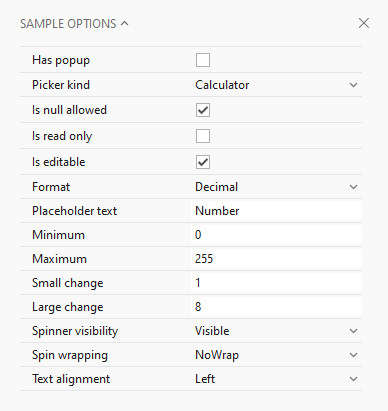
This feature combined with a new CanAutoConfigure option makes it easy to specify several properties in XAML that should be displayed in a PropertyGrid. You simply bind the PropertyModel.Value to a property on another object and it fills out the rest, including selection of a property editor. You can also override the automatic configuration as needed, such as when you want a specialized property label or editor.
The PopupButton had a lot of its internals and logic refactored and improved for more common use cases. New properties were added to make popup customization easier.
A new primitive ShadowChrome control has been added that renders modern drop shadows using optional shader effects.
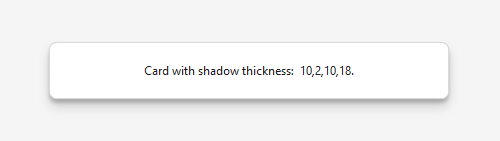
It also can render beautiful downward shadow effects using high-performing WPF rendering procedures.
The MultiColumnPanel control can render child elements in multiple columns, collapsing columns down as available space decreases.
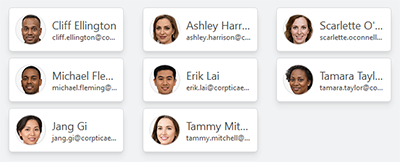
It's a space-efficient and visually-appealing way to render lists of items, or to break paragraphs of text up.
We completely reimagined the user interface of our WPF Controls samples application.
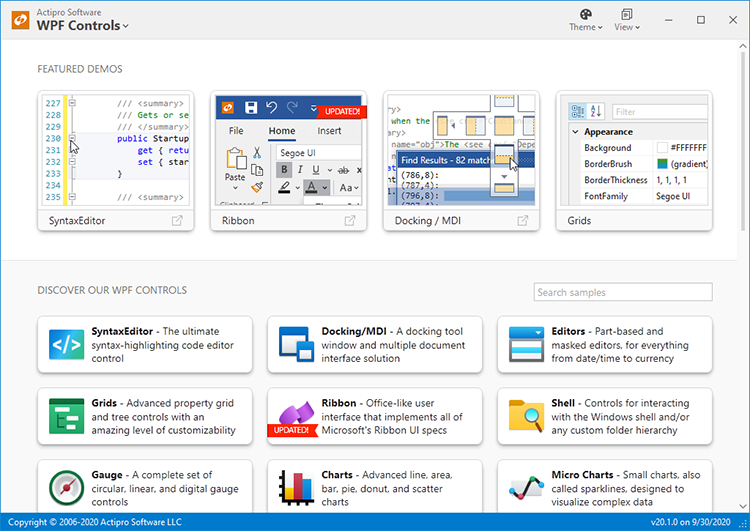
It now harnesses all of our themes improvements and provides a fast, efficient way to navigate and interact with our hundreds of samples.
With v2020.1, our control products ship in both .NET Framework 4.0 and .NET Core 3.0 variations of assemblies. You will now be able to use native .NET Core-based Actipro assemblies in your .NET Core apps!
Another big request by customers has been for us to supply NuGet packages for our controls and we are delivering that in v2020.1. NuGet packages are published on nuget.org and contain both the .NET Core and .NET Framework variations of our assemblies.
NuGet packages are required to be used if you need the .NET Core variations of our assemblies. View all available Actipro NuGet packages at: https://www.nuget.org/profiles/ActiproSoftware
New toolbox icons have been designed for all our WPF Controls so they blend in perfectly with Visual Studio 2019 design.
Finally, we also have created a new install experience that is beautiful in its simplicity.
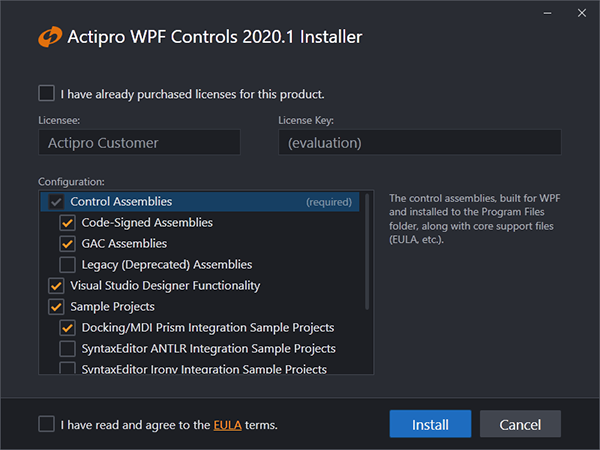
It makes installing and uninstalling the WPF Controls a joy.
We hope you love the new version!
 Bill Henning (Actipro)
-
1 comment
Bill Henning (Actipro)
-
1 comment
Actipro WPF Controls v2020.1 development is in progress, and the new version’s main goals are to modernize our UI control features/themes, and make theme customization much easier.
In the previous post, we showed off a new ShadowChrome control that is a decorator for rendering modern shadow effects. In today’s post, let’s have a look at some of the major work we’ve done on modernizing the appearance of our Ribbon product for v2020.1.
For the 2020.1 version, we’ve gone through every Ribbon-related control and made style improvements to match the latest appearance found in Office 2019. Let’s see how the 2020.1 version’s theme compares to our current 2019.1 version’s theme:
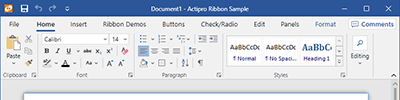
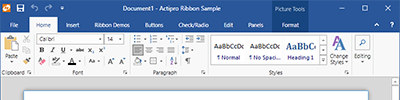
You can see from the screenshots that there are subtle differences throughout. Whitespace has been adjusted, glyphs are now chevrons, the title bar background accent is more restrained, etc.
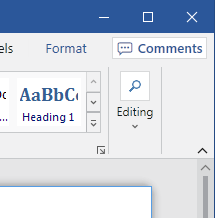
Looking at the right side of the Ribbon, collapsed groups now render a bit differently from before. Contextual tab groups are more subtle. Tab row buttons like the Comments one in this screenshot have a new available style. And there is a built-in minimization button on the bottom-right.
We also wanted to provide fluid animations throughout the Ribbon, similar to Office. When you move your mouse over a tab, the underline animates to fill the tab.
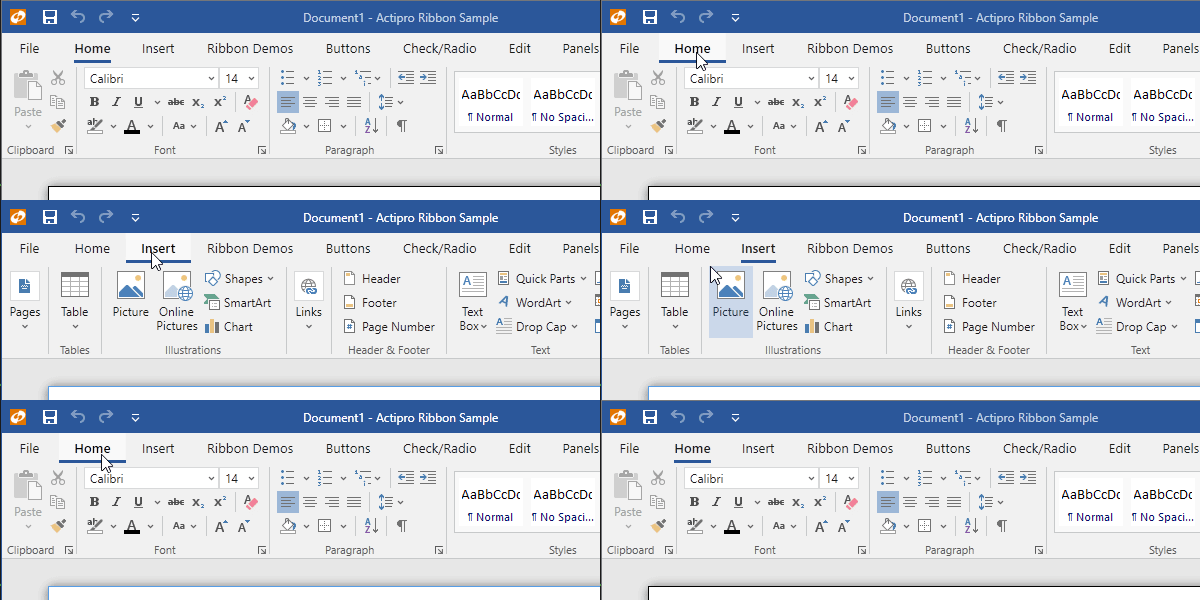
When you select a new tab, the tab’s content animates into place with a quick slide.
Continuing on the animation front, we harnessed the great new WindowChrome overlay features that are coming in 2020.1 to host our Ribbon’s Backstage.
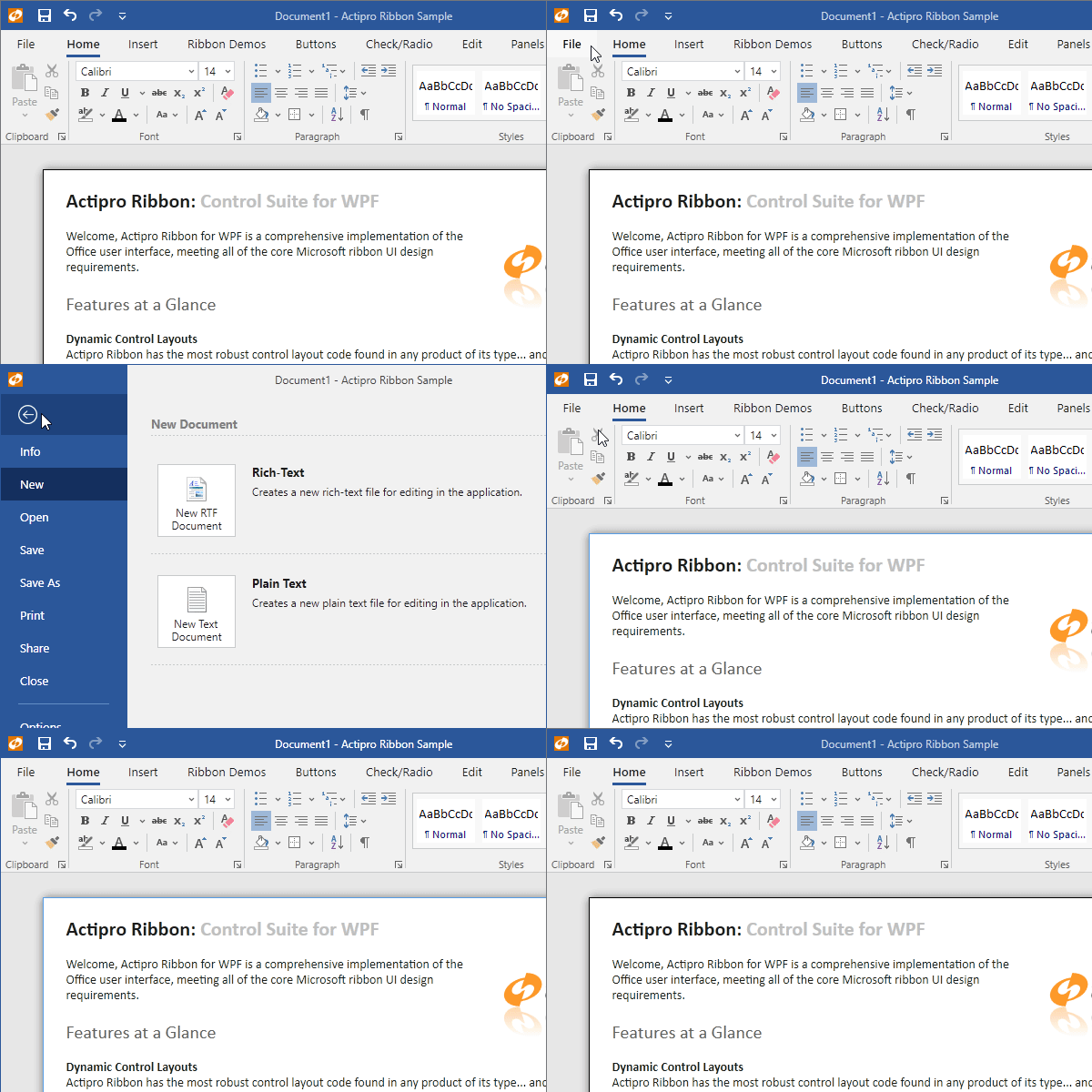
This allows the Backstage to be fully animated on display as well.
We are still continuing to iterate on our themes for Ribbon and other products, but this should give you an idea of some of the fantastic themes updates coming in the new version.
Post in the comments below if you have any feedback or questions about the new Ribbon themes.