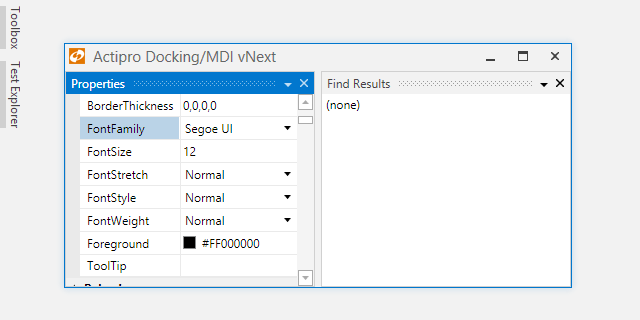
Docking/MDI vNext - Pressing Esc to Cancel Drags

by Avatar Bill Henning (Actipro)
Wednesday, May 13, 2015 at 4:02pm

PostBannerWPFControlsDevNotes

As mentioned in this previous post, we've been looking for ideas to further improve our WPF Docking/MDI product, which already is the market leader for docking tool window and MDI functionality.  We've committed to working on a complete internal restructuring of the product that we will call Docking/MDI vNext.  We're doing our best to keep the same general API surface, while providing even more advanced features in every area of the product.  We've collected suggestions from our customers over the past several years and are working to meet them as best we can with Docking/MDI vNext.

In yesterday's post, we gave a first glimpse at the updated tool window dragging UI and behavior.  The new drag behavior is similar to the latest behavior found in Visual Studio where dragged tool windows and containers immediately float, but we've improved upon it with fast, subtle animations for dock guides and drop previews.

One of our customers saw that post and suggested that we allow for the Esc key to cancel the drag and restore it back to its prior location.  This is something VS doesn't currently do and can be annoying when you accidentally start a drag, and then manually have to put the tool window back in place.  This was a great suggestion so we added it this morning.

Feature Description

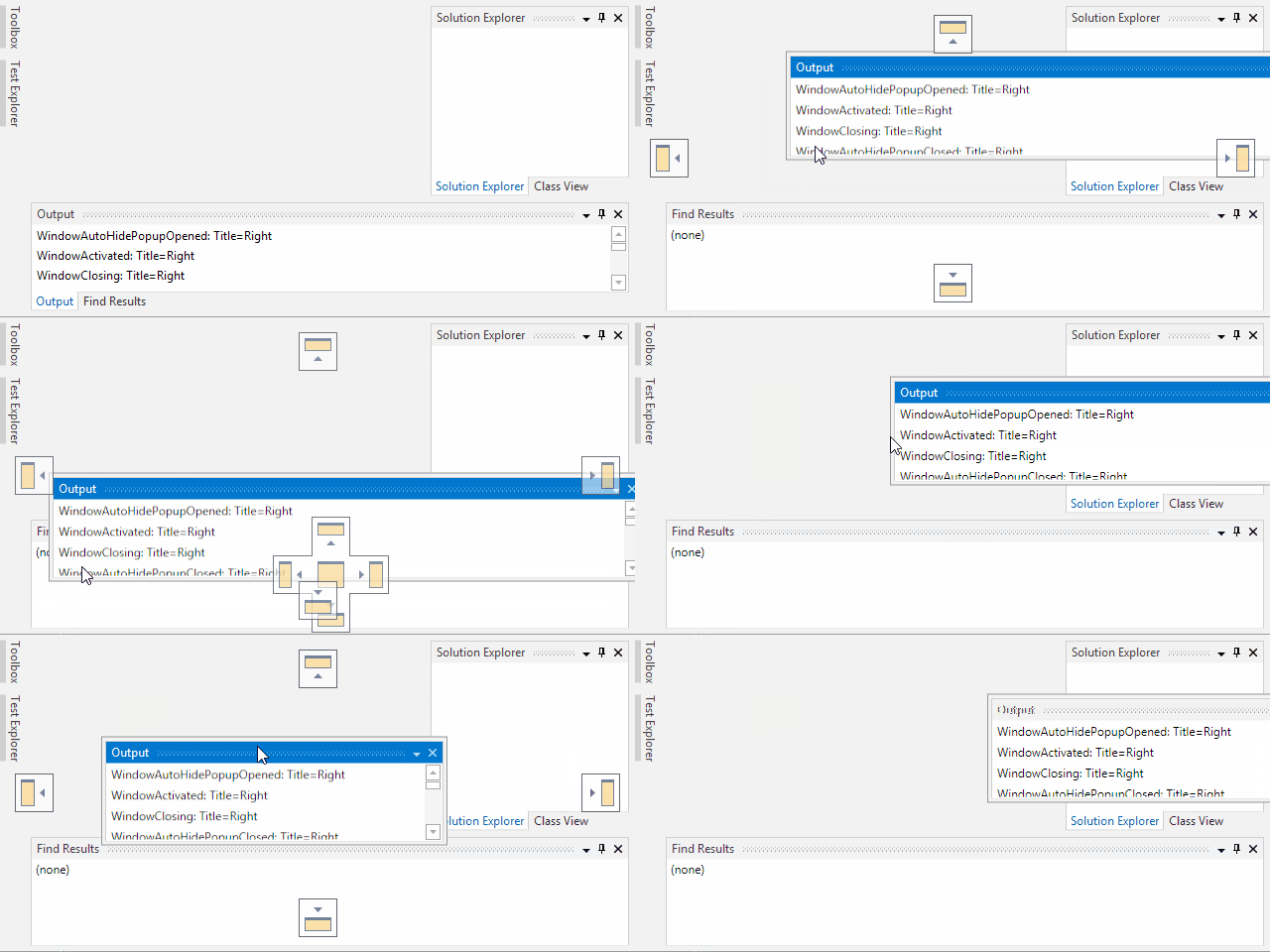
As you drag a tool window or container, you can press the Esc key to cancel the drag.  If the drag originated from a docked state, it will restore back to that prior location.  If the drag originated from a container that was already floating, it will restore the container back to the prior X/Y coordinates.

Here's an example:

ToolWindowDragCancel

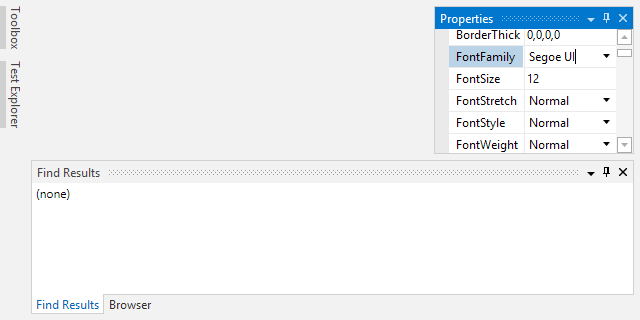
In this screenshot sequence, I start off by dragging the Output tool window to float it and press Esc while still dragging.  The Output tool window restores back to its prior located, attached to the Find Results tool window.

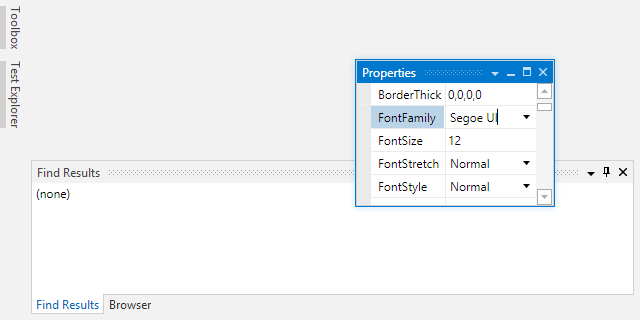
Then I drag the Output tool window again and drop it into a floating state.  I resize the container and drag to move it, pressing Esc again while dragging.  The floating container jumps back to its previous floating location before the drag started.

Summary

Thanks for the great suggestion Jim!  If anyone else has suggestions for features, please send them over.

Docking/MDI vNext is currently still in early development stages but is progressing very well.  Please contact us via email if you are an existing customer and would like to sign up as a beta tester for vNext.  If you have any other suggestions for improving Docking/MDI, now is the time to get them in.  We'll post more updates on our vNext improvements soon.

In the meantime, please download our current Docking/MDI control product and give it a spin.

TaskDownload TaskLiveDemo TaskBuyNow

Docking/MDI vNext - Dragging and Dock Guides

by Avatar Bill Henning (Actipro) - 2 comments
Tuesday, May 12, 2015 at 4:27pm

PostBannerWPFControlsDevNotes

As mentioned in this previous post, we've been looking for ideas to further improve our WPF Docking/MDI product, which already is the market leader for docking tool window and MDI functionality.  We've committed to working on a complete internal restructuring of the product that we will call Docking/MDI vNext.  We're doing our best to keep the same general API surface, while providing even more advanced features in every area of the product.  We've collected suggestions from our customers over the past several years and are working to meet them as best we can with Docking/MDI vNext.

In today's post, I'd like to show off the redesigned dragging functionality for tool windows and the dock guide display.

Feature Description

For vNext, one thing we're working very hard on is injecting fast, subtle animations throughout the product.  We want the docking window UI to appear fluid, much like the rest of Windows.  We pay special attention to animation speed so that the animations provide pleasing effects while not hindering usability in any way.

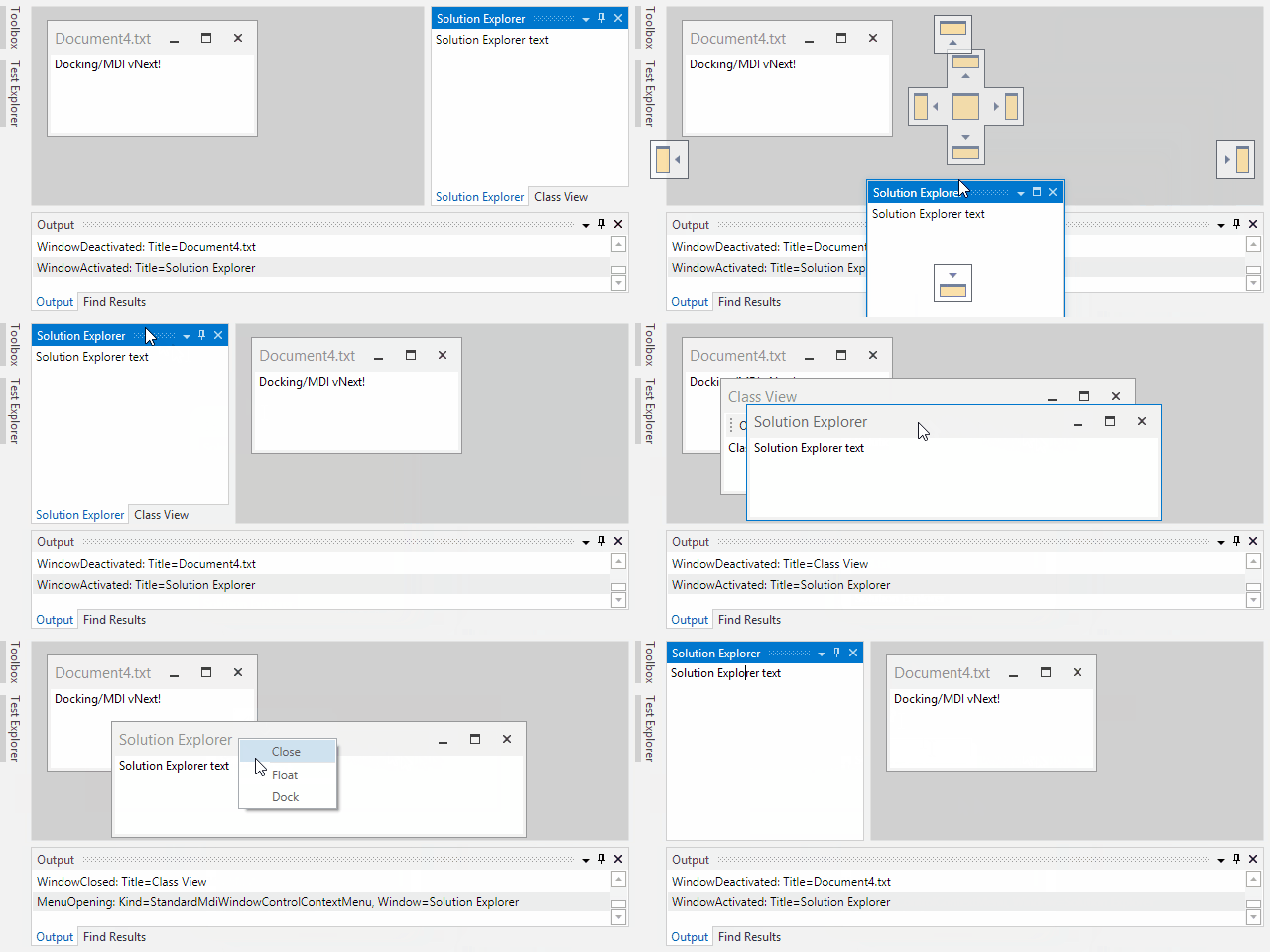
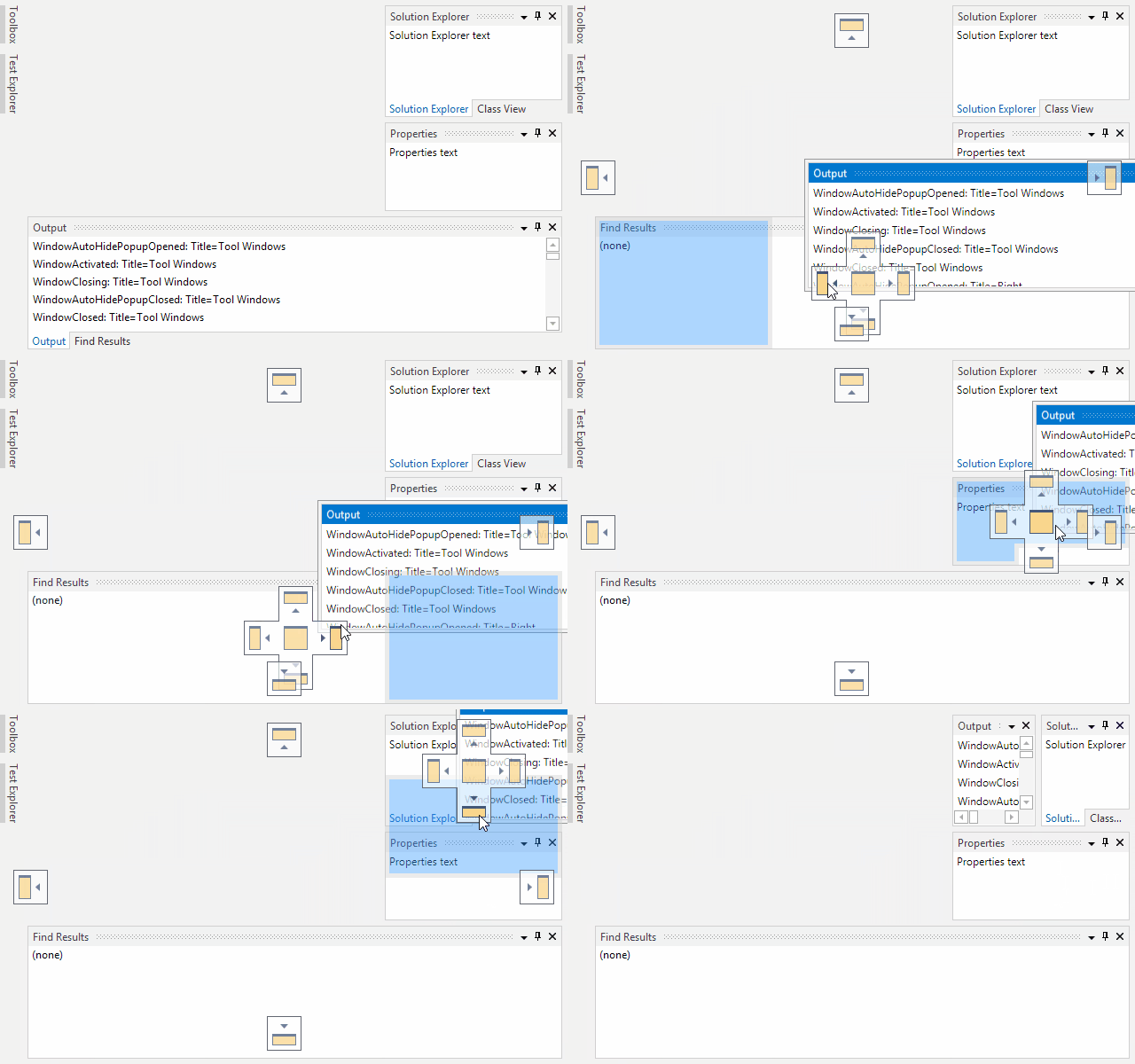
In the area of dragging tool windows, we have quick fade ins for the dock guides.  Also, a blue drop preview appears when moving over dock guides, or tool window container title bars and tabs.  The blue drop preview has an animation that "pops" into place, using a combination of fade and scale effects.  Check it out below:

DockingDockGuides

This screenshot sequence also shows off a new method of dragging tool windows for vNext.  In the past, starting a tab drag would drag a blue rectangle only.  In vNext, starting a tab drag (or a tool window container drag via title bar) will immediately detach the tool window(s) from the layout and float them, tracking the floating container with the pointer.  As you drag over a dock guide or tool window container title bar/tab area, the semi-transparent blue drop target appears on top of the floating container to show you where the drop will occur.  This new behavior matches what is found in the latest version of Visual Studio.

You'll notice that I referred to the "pointer" and not mouse above.  That's because we also are taking great care in vNext to ensure dragging, etc. all fully work with any pointer such as mouse, stylus, or touch!  The docking capabilities seen above can be accomplished with your finger on a touchscreen.

Summary

These are just some of the really advanced features we're adding to the product for vNext.

Docking/MDI vNext is currently still in early development stages but is progressing very well.  Please contact us via email if you are an existing customer and would like to sign up as a beta tester for vNext.  If you have any other suggestions for improving Docking/MDI, now is the time to get them in.  We'll post more updates on our vNext improvements soon.

In the meantime, please download our current Docking/MDI control product and give it a spin.

TaskDownload TaskLiveDemo TaskBuyNow

Easily Manage Task Queues Using the TaskBoard Control

by Avatar Bill Henning (Actipro)
Thursday, April 23, 2015 at 11:55pm

BlogPostBannerViews

The 2015.1 versions of our WPF, Silverlight, and WinRT/XAML controls were released a couple weeks ago and in today's post I'd like to highlight one of the great new controls that were introduced in that version:  TaskBoard.

TaskBoard Overview

A task board consists of zero to many columns, each of which can contain zero to many cards.  Columns and cards can be dragged and reordered, using pleasing animations.  Let's see an example to give you a picture of how it all works.

In the demo below, we have a TaskBoard control that is being utilized for a task planning system, commonly used in project management to help organize the priorities of a team.  The columns represent task groupings, and the cards represent individual tasks.  Each column has a header and optional footer that surrounds the contained card items.

TaskBoard
In this sample, each column header specifies the task grouping name and the column footer contains an "Add a task" button.  The footer of the overall TaskBoard control contains an "Add a list" button, which shows at the end of the list of columns.

The entire UI of the task board can be fully customized.  The cards can show any custom content as well, or can vary content based on data template selectors.

The TaskBoard control is designed for MVVM usage and makes it easy to fully alter the appearance of the entire layout with properties for column/card spacing, padding, corner radius, etc.  Best of all, rich animations are used whenever dragging columns or cards.

TaskBoard also works great with touch input.  Use it to create task planning systems on large touchscreen displays.

Summary

The full source TaskBoard demo seen above is included in the sample projects that ship with our WPF, Silverlight, and WinRT/XAML controls, and is available for you to check out today.

Let us know what you think after you try it!

TaskDownload TaskLiveDemo TaskBuyNow

WPF Controls 2015.1 Build 621 Released

by Avatar Bill Henning (Actipro)
Thursday, April 23, 2015 at 3:03am

BlogPostBannerWPF201510621

WPF Controls 2015.1 build 621 has been released and is now available for download.  This build has several new minor features.

Due to a certain initialization bug that was located in the original 2015.1 release, it is highly recommended that customers who have downloaded 2015.1 build 620 upgrade to this new build.

See the announcement post for the detailed list of enhancements and updates.

TaskDownload TaskLiveDemo TaskBuyNow

SyntaxEditor - Find All Using EditorSearchView

by Avatar Bill Henning (Actipro)
Friday, April 10, 2015 at 12:56pm

PostBannerSyntaxEditorDevNotes

In today's post, we'll show the optional Find All button that was recently added to the SyntaxEditor (WPF, Silverlight, and WinRT/XAML platforms) EditorSearchView control.

Feature Description

SyntaxEditor has always had the ability to perform "find all" searches programmatically, however we received feedback from numerous customers looking to add this to our EditorSearchView control so that their end users could also access it.

EditorSearchView

The EditorSearchView control seen above shows the new Find All button visible.  Note that it is not visible by default (the new EditorSearchView.IsFindAllButtonVisible property defaults to false) since unlike the other find and replace operations, there is no automatic UI change in the editor itself for a find all operation.  Instead, you need to display the results somehow, such as in a find results list.

FindResults

This screenshot shows an example find results list.  The full source code for this sort of setup is included in the samples that come with SyntaxEditor.

Summary

Providing the ability for your app's end users to find all instances of search text is certainly a handy addition.

The features described above are available in our latest WPF, Silverlight, and WinRT/XAML control versions and are available for use.

TaskDownload TaskLiveDemo TaskBuyNow